By eSIM Grab ·
iMessage sending from your email after switching to a travel eSIM?
If the message goes through but your contact sees an email address, start in Send & Receive. The fix depends on whether your number is already available, whether you’re replying in an old thread, and whether Apple is still verifying the number.
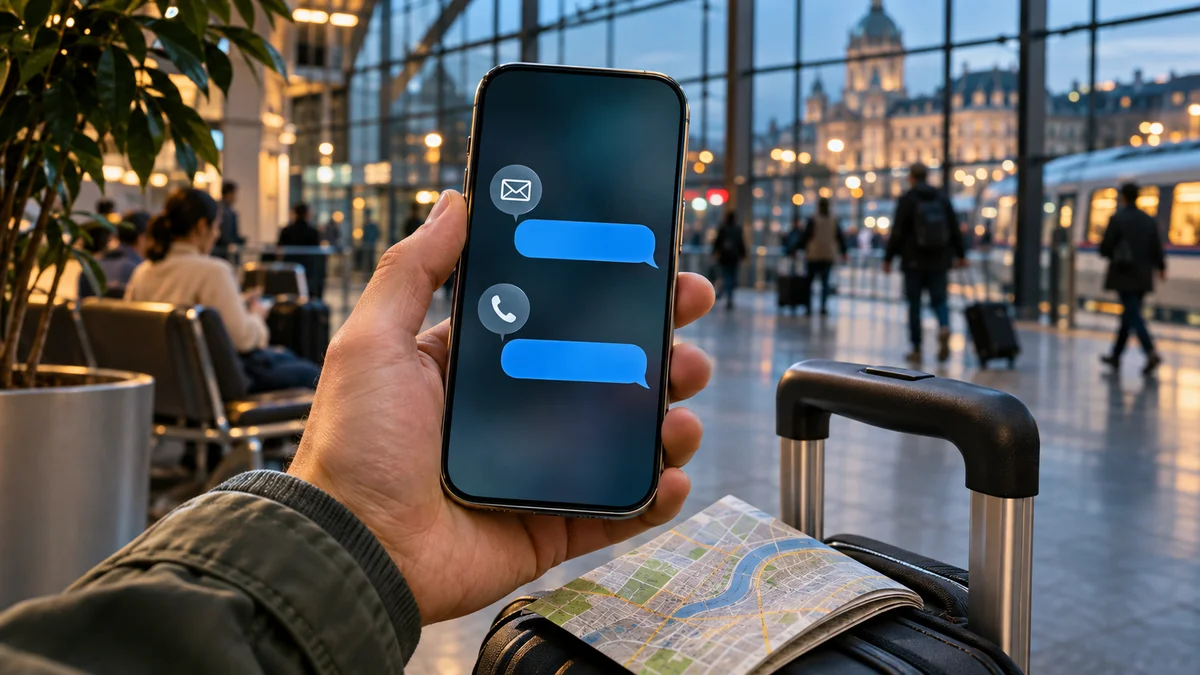
You land, open Maps on your travel eSIM and message the friend who’s picking you up. The message arrives in blue, but they ask who’s texting. Their phone shows your email address instead of the number they saved. Buying more data won’t change the address Messages uses.
Start with the sender. Open Settings → Apps → Messages → Send & Receive. If your home number is available, choose it for new conversations and compose a fresh message. If the number is missing or still verifying, check activation before changing any SIM settings.
1. Check what actually changed
Your internet connection, your iMessage sender, and the messaging service a conversation uses can change independently. An active data-only travel eSIM can carry iMessage traffic. It cannot provide ordinary SMS service or register your existing phone number for you.
| What you see | First check |
|---|---|
| Blue message, email sender | Check the address for new conversations and whether you replied in a thread started from email. |
| Number missing or still verifying | Check Apple number activation and the carrier that owns that number. |
| Green message or failed delivery | Check whether the recipient can use iMessage and whether internet works. Green can mean RCS, SMS or MMS. |
| Web pages also fail over travel data | Check the selected data line, plan status and the travel provider’s connection instructions first. |
Use a contact whose iMessage normally works. A green bubble alone cannot tell you which carrier service was used, why it was selected, or what it costs. Check your line’s terms before using carrier messaging abroad. Apple’s comparison of iMessage, RCS and SMS/MMS
2. Choose the number and start a new conversation
| Setting | What to check |
|---|---|
| Addresses for receiving and replying | Confirm your home number is listed and selected if you want iMessages addressed to it. |
| Start New Conversations From | Select your home number if it’s available. This chooses the sender for new conversations. |
Use the compose button for a new conversation with the same person. Apple says an existing conversation started from your email needs a new thread to use your number. You can keep the old thread and its history. Apple’s sender and conversation instructions
3. If your number is missing or still verifying
Apple requires active service for the SIM or eSIM associated with the number when setting it up for Messages or FaceTime. Number activation on iPhone uses SMS and can incur a carrier charge. A working browser and working email-based iMessage show that you have internet. Neither establishes that the home carrier can handle the activation SMS from your destination. Apple’s requirements for adding a number
Check that you have internet and that the iPhone’s date, time zone and software meet Apple’s activation guidance. Ask your home carrier whether the line can send and receive international SMS from where you are and what that costs. Once you’ve followed Apple’s troubleshooting steps, verification can take up to 24 hours. If a spinner is already beside the number, let it finish without repeatedly toggling iMessage. Apple’s activation troubleshooting
There is a specific setup case on a new iPhone with iOS 26. Apple documents that if iMessage or the eSIM wasn’t activated during initial setup and the eSIM was added later in Settings, iMessage may need to be switched off and back on once. Follow that step when the scenario matches. Changing the sender or composing a new thread is the relevant first step when your number already works.
If you need to reach someone now, select a verified Apple Account email in Send & Receive and tell them which address to use, or use an internet messaging app you both already have. FaceTime has a separate reachable-address setting under Settings → Apps → FaceTime. Email can create a separate conversation with the same person. It cannot receive ordinary texts or verification codes addressed to your phone number.
4. Keep the data connection and your number separate
On a compatible iPhone, you can select the travel line for cellular data under Settings → Cellular → Cellular Data. Menu names can vary by region. Apple also describes a travel setup prompt on iOS 26 and later that can offer using only the travel eSIM while continuing to use your home line’s existing iMessage and FaceTime identity. The prompt can vary, so check the number in Send & Receive after switching. Restoring a missing number is a separate activation step. Apple’s travel eSIM setup options
If you keep both lines enabled, check the home carrier’s charges for calls, carrier messages and roaming. Selecting travel data or turning off data roaming on your home line only addresses data use. Keep any needed home-number service in mind before turning a line off. If a data-only plan fits your trip, follow its own instructions for coverage and roaming on the travel line.
Direct a failed travel-data test to the travel eSIM provider. Ask your home carrier about SMS availability for number activation. If those services work and the number is still missing after Apple’s activation steps, take the support note to Apple. For an app that asks your phone to send its own verification text, use our guide to bank-app verification abroad.